What Should I Do if the Audio Port On My Docking Station Isn't Working?(A83B3)

Please try the following steps:

  • Disconnect the docking station from your laptop and all connected devices. Wait at least 5 minutes. Then, restart your laptop and reconnect the dock.

  • If you're using a MacBook, go to System Settings > Sound, then under the Output tab > select Anker 3.5 mm Audio as the output device.

  • Test the dock with another laptop.

  • Try using a different headset.


If all of the steps above cannot help you locate and resolve the problem, please contact Anker Customer Support for further assistance. Briefly mention the steps that you’ve already tried for a faster solution.

Download icon
What Should I Do if the Audio Port On My Docking Station Isn't Working?(A83B3)
Unresolved icon
9 undefined
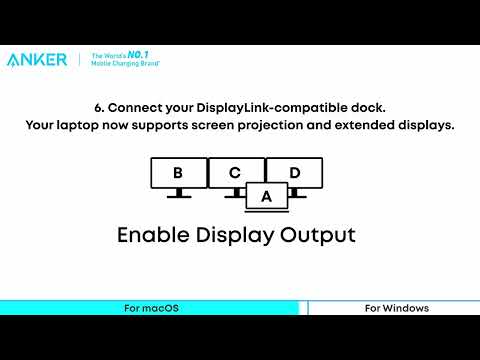
Play videoAnker Prime Docking Station (14-in-1, Triple Display, DisplayLink) Installation Guide for DisplayLink
Anker Prime Docking Station (14-in-1, Triple Display, DisplayLink) Installation Guide for DisplayLink
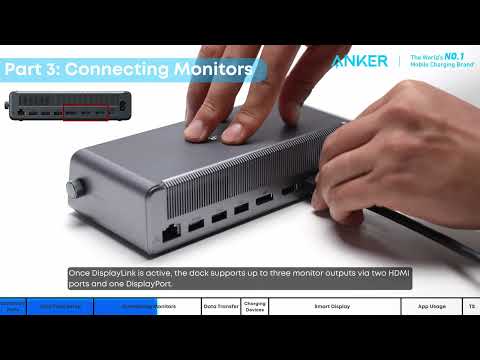
Play videoAnker Prime Docking Station (14-in-1, Triple Display, DisplayLink) Quick Start Guide
Anker Prime Docking Station (14-in-1, Triple Display, DisplayLink) Quick Start Guide
Play videoAnker Prime TB5 Docking Station Quick Start Guide
Anker Prime TB5 Docking Station Quick Start Guide
Contact Us
anker link

USA:
For Anker Charging: 1-800-988-7973

Mon - Fri: 6 AM - 5 PM (PT)

anker link

Mon - Sun: 8 AM - 4 PM (PT)

Buy on the Anker Store
anker link

Hassle-Free Warranty

anker link

30-Day Money-Back Guarantee

anker link

Fast, Free Shipping

anker link

Lifetime Customer Support

Amazon American Express Apple Pay Diners Club Discover Google Pay Mastercard PayPal Shop Pay Venmo Visa