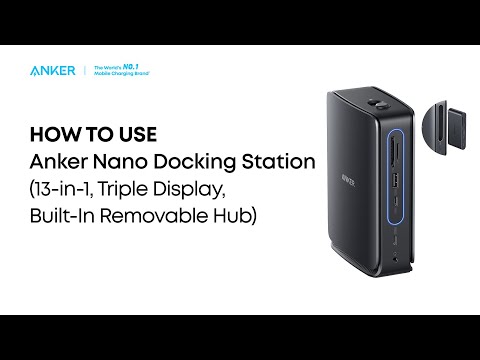
When using this dock with a MacBook to connect multiple monitors, please note that macOS only supports screen mirroring. This is due to system-level limitations—macOS does not support Multi-Stream Transport (MST), so multiple external monitors will show the same content.
In contrast, Windows supports both Single-Stream Transport (SST) and Multi-Stream Transport (MST), which allows each external display to show different content.
If you're having display issues, try these steps below:
1. Confirm that your laptop's USB-C port supports DP Alt Mode (DisplayPort output). Check your laptop's user manual, official support site, or contact the manufacturer.
2. Make sure your graphics driver is up to date. Updating it may help resolve compatibility issues.
3. Test the dock with another laptop that supports DP Alt Mode to determine if the issue is laptop-specific.
4. Try a different HDMI or DP cable, or connect a different monitor. Lowering the resolution or refresh rate may also help.
5. Disconnect the dock from your laptop and unplug all devices. Wait at least 5 minutes, then restart your laptop and reconnect everything.
If all of the steps above cannot help you locate and resolve the problem, please contact Anker Customer Support for further assistance. Briefly mention the steps that you’ve already tried for a faster solution.